Nano Banana 2.1 AI Image Generator
Nano Banana 2.1 turns written ideas and reference photos into original images. Create product scenes, consistent characters, and graphics with readable text on Gemeni, then refine the details with natural-language edits.
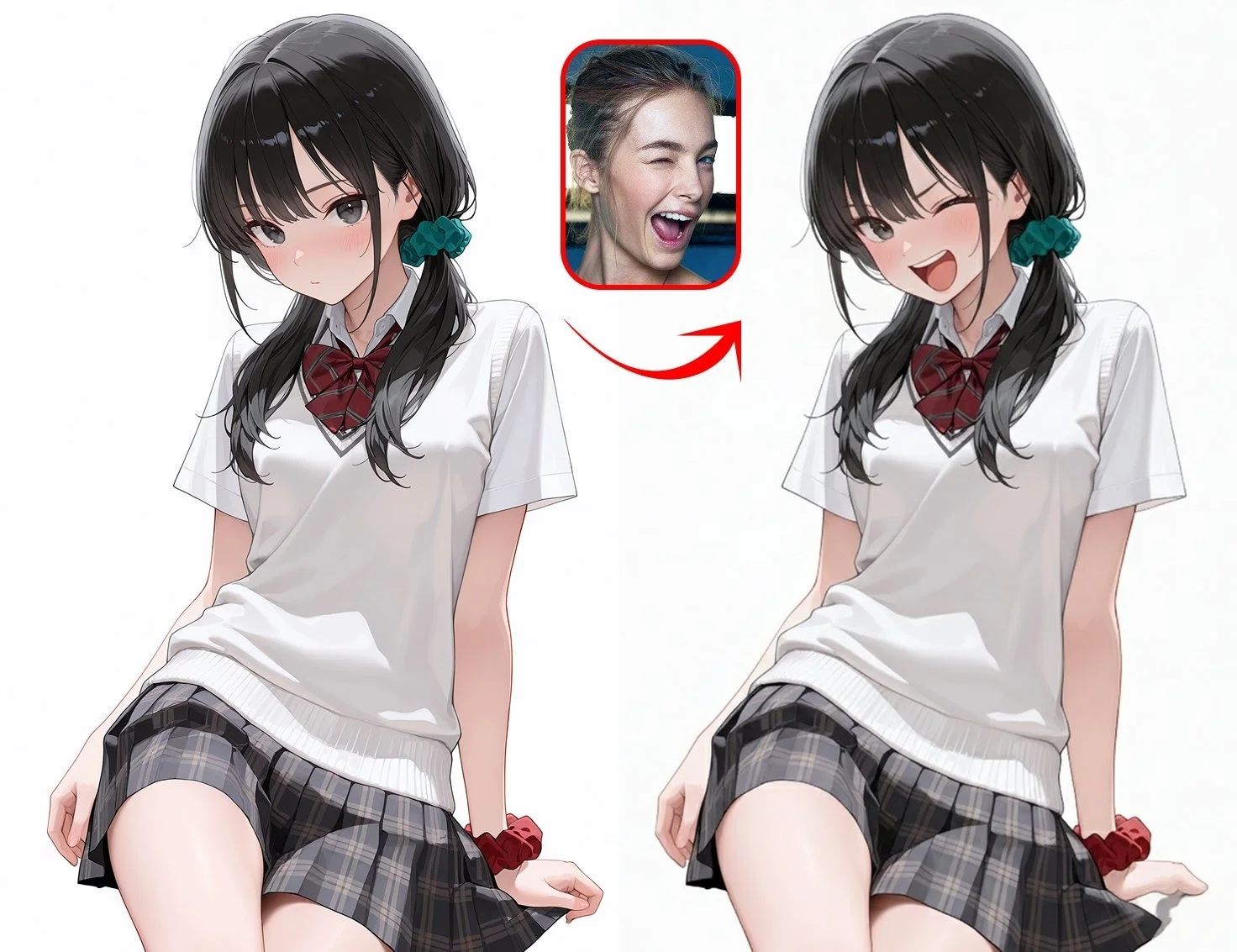
Nano Banana is Google's image model family within Gemini. Nano Banana 2.1 brings that creative capability to new pictures, reference-led edits, and connected visual series. On Gemeni, you can work with text or photos, choose the shape of your canvas, and generate at 1K, 2K, or 4K. This guide helps you get more from the model, write useful instructions, and choose between versions for a particular project.
Create and Edit Images with Nano Banana 2.1
The most useful starting point is the picture you want to finish. A product launch might need a studio image, a lifestyle scene, and a vertical campaign visual. A character concept might need a recognizable face across different settings. Nano Banana AI gives you a way to develop those variations around the same visual idea.
Turn a written concept into a finished visual
For a new image, describe the subject and the role it plays in the composition. Then choose the setting, material, lighting, and visual style. A product close-up benefits from details about the surface and reflections; an illustrated cover needs a clear focal point and room for the title.
Use Nano Banana 2.1 to explore a direction before expanding it into a collection. Keep the color palette and framing consistent across related images, while changing the element that distinguishes each one. This is especially useful for campaign concepts, presentation artwork, and coordinated social graphics.
Give a photo a new setting or style
Upload an existing image when the person, product, or composition should guide the result. Describe the transformation you want: a different location, another outfit, a warmer lighting treatment, or an illustrated finish. Include the identifying details you want to carry through, such as the shape of a bottle or a character's hairstyle.
For a product launch, use Nano Banana photo editing to build three connected assets: a 1:1 product tile at 2K, a 4:5 campaign visual at 2K, and a 16:9 presentation image at 4K. Use the original product photo to define the item in each composition. Add the chosen campaign image as a second reference for its palette and lighting. Give each format a distinct layout, such as a centered product, a vertical headline, or space beside the subject for presentation copy.
Combine references for a connected series
Gemeni lets you upload up to 10 reference images with Nano Banana 2.1. Assign each image a job: one can define the subject, another the environment, and another the color treatment. Refer to them by upload order so the instructions clearly connect to the right picture.
For a recurring character, keep a consistent set of references and describe the features that make the character recognizable. For a product series, use the same item reference while varying the surface, background, or camera position. That gives the series a shared identity and a reason for each image to exist.
In TechRadar's October 2026 comparison, Nano Banana 2.1 produced a four-panel comic with a recognizable fox, a consistent scarf, and a clear progression between scenes. That published example makes story panels a useful creative direction to explore: define the character first, then describe each scene's action and composition.
Write Nano Banana Prompts with a Clear Visual Plan
A useful Nano Banana prompt explains the desired result in a deliberate order. Start with the image's purpose, then describe the subject, composition, and appearance. Add exact wording and reference instructions where they matter. You can make the brief detailed while keeping each requirement easy to identify.
- Establish the layout. Describe the foreground and background, the subject's position, and the space for a heading or other visual element. For a comparison graphic, define what belongs in each panel.
- Direct the look. Choose a lighting direction, a material treatment, and a color palette. These details help a product series or character collection feel intentional.
- Write image text precisely. Put the desired words in quotation marks and explain their size, placement, and hierarchy. Separate the main headline from supporting labels.
- Guide the next edit. Name the part that should change and the visual details that should remain. Use the selected image as the reference for that step.
With Nano Banana 2.1, treat each revision as a design decision. Once the composition works, explore a lighting change or a new color treatment. For a campaign, save the chosen direction and reuse its visual rules across the remaining assets.
Choose Nano Banana 2.1 Settings for the Final Format
Choose the canvas around where the image will appear. On Gemeni, Nano Banana 2.1 offers familiar social and presentation formats as well as very wide or tall canvases. Set the ratio first, then describe how the subject and supporting elements should fill that space.
| Image destination | Useful starting ratio | Composition direction |
|---|---|---|
| Product tile or profile graphic | 1:1 | Give the subject a strong central presence |
| Portrait campaign image | 4:5 or 3:4 | Arrange the subject and headline vertically |
| Story cover or video still | 9:16 | Keep important details clear in the vertical frame |
| Presentation or landscape scene | 16:9 | Use depth and horizontal space to guide attention |
| Panoramic banner | 4:1 or 8:1 | Place the focal point deliberately and extend the scene around it |
Use 1K while exploring compositions, then select 2K or 4K for the level of detail your final design needs. For Nano Banana 4K artwork, include the surfaces and textures you want to emphasize. A fabric campaign might focus on the weave and folds; a product close-up might emphasize brushed metal, glass, or a smooth label.
Nano Banana 2.1 vs Nano Banana 2
Nano Banana 2.1 updates the previous version with Google's stated improvements to image quality, prompt following, text rendering, and consistency through edits. It also addresses tiling in 1:4, 4:1, 1:8, and 8:1 output at 2K and 4K. The creative value is a stronger starting point for designs that combine detailed subjects, arranged text, and unusual framing.
| Your creative priority | Why consider 2.1? | A useful way to compare |
|---|---|---|
| Posters and labeled graphics | Updated lettering and layout accuracy | Use the same wording, hierarchy, and canvas |
| A character or product series | Improved consistency across edits | Carry the same reference through a setting and lighting change |
| Wide campaign artwork | Refinements to panoramic output | Compare the full composition and background continuity |
| New visual concepts | Updated image quality and instruction following | Give both versions the same subject and visual direction |
For new work, Nano Banana 2.1 is our recommended starting point. When extending an existing series, place the new version beside a selected image and compare the palette, subject appearance, and overall treatment. This turns version choice into a concrete decision about the work you are making.
Nano Banana 2.1 vs Nano Banana Pro
Google positions Nano Banana 2.1 as its efficient image creation and editing model, with Pro serving more demanding visual briefs. Both belong to the Gemini Nano Banana family. The useful distinction is how much structure the image needs to coordinate.
Choose 2.1 for everyday creative exploration: a fresh product scene, a portrait restyle, or a sequence of related visuals. Consider Pro when the brief depends on several objects occupying specific positions, a detailed infographic, or a composition with carefully ordered text and imagery.
For a campaign layout, compare how each model handles the main subject, supporting objects, and reading order. Keep the references and wording consistent. Choose the image whose hierarchy communicates your idea most clearly, then continue refining that direction in the Gemini image generator.
Nano Banana 2.1 vs GPT Image 2.5
GPT Image 2.5 offers another approach to creation and editing, with OpenAI emphasizing subject preservation and precise changes. On Gemeni, its Flare and Sunburst options provide a choice between a fast creative workflow and more detailed refinement. Nano Banana 2.1 combines reference-based creation with a wide range of canvas shapes, including extreme panoramic formats.
For a wide website banner or a coordinated collection, start with Nano Banana 2.1 and establish the composition and visual identity. For a focused edit to an existing asset, compare GPT Image 2.5 using the same reference and change request. Flare is a useful starting point for exploring variations; Sunburst is worth considering when refining a detailed final asset.
Judge the comparison through the deliverable: the requested change, the recognizable subject, the text arrangement, and the light on important surfaces. A poster and a product close-up have different priorities. Select the interpretation that makes your particular image stronger, then develop the rest of the project around it.
Take Your Nano Banana Image into Video
A finished image can become the visual anchor for a short video. Settle the subject, setting, and framing with Nano Banana first, then upload the selected still to the Gemini video generator. Describe what moves, where the camera travels, and how the shot should feel.
For a product launch, that might mean moving from a carefully composed still to a gentle camera reveal. For a character scene, establish the look before directing an action. Explore Gemini Omni 1.1 Flash for a closer look at the video model's reference inputs and creative controls.
Frequently Asked Questions
Bring Your Next Idea to Life with Nano Banana 2.1
Start with a scene in your imagination or a photo you love. Shape the look, explore a new setting, and make it your own on Gemeni.
Create with Nano Banana 2.1